

//Introduction
When setting up sources in Telematic.pro, the correct configuration of CSS selectors plays an important role. They allow you to:
- Extract links to articles from the main page of the website.
- Find and parse the main content within each article.
- Exclude unnecessary elements (e.g., ads, footers, side menus).
To effectively parse content, you need to be able to find the right selectors using DevTools in your browser. In this article, we will discuss how to do this.
//Using DevTools to Find Selectors
1. Opening DevTools
In Google Chrome or Firefox, press F12 or Ctrl + Shift + I (on Mac: Cmd + Option + I) to open Developer Tools (DevTools).
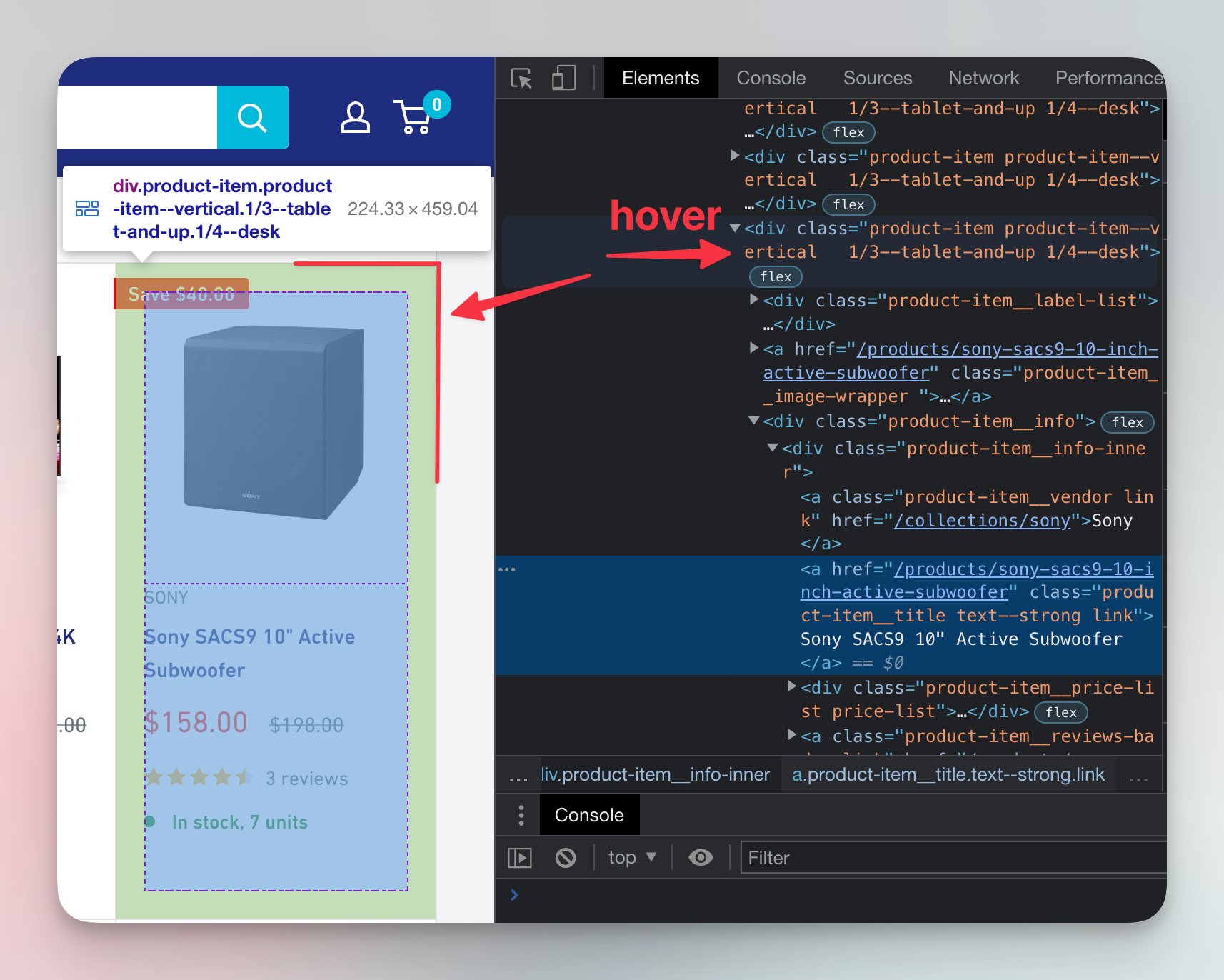
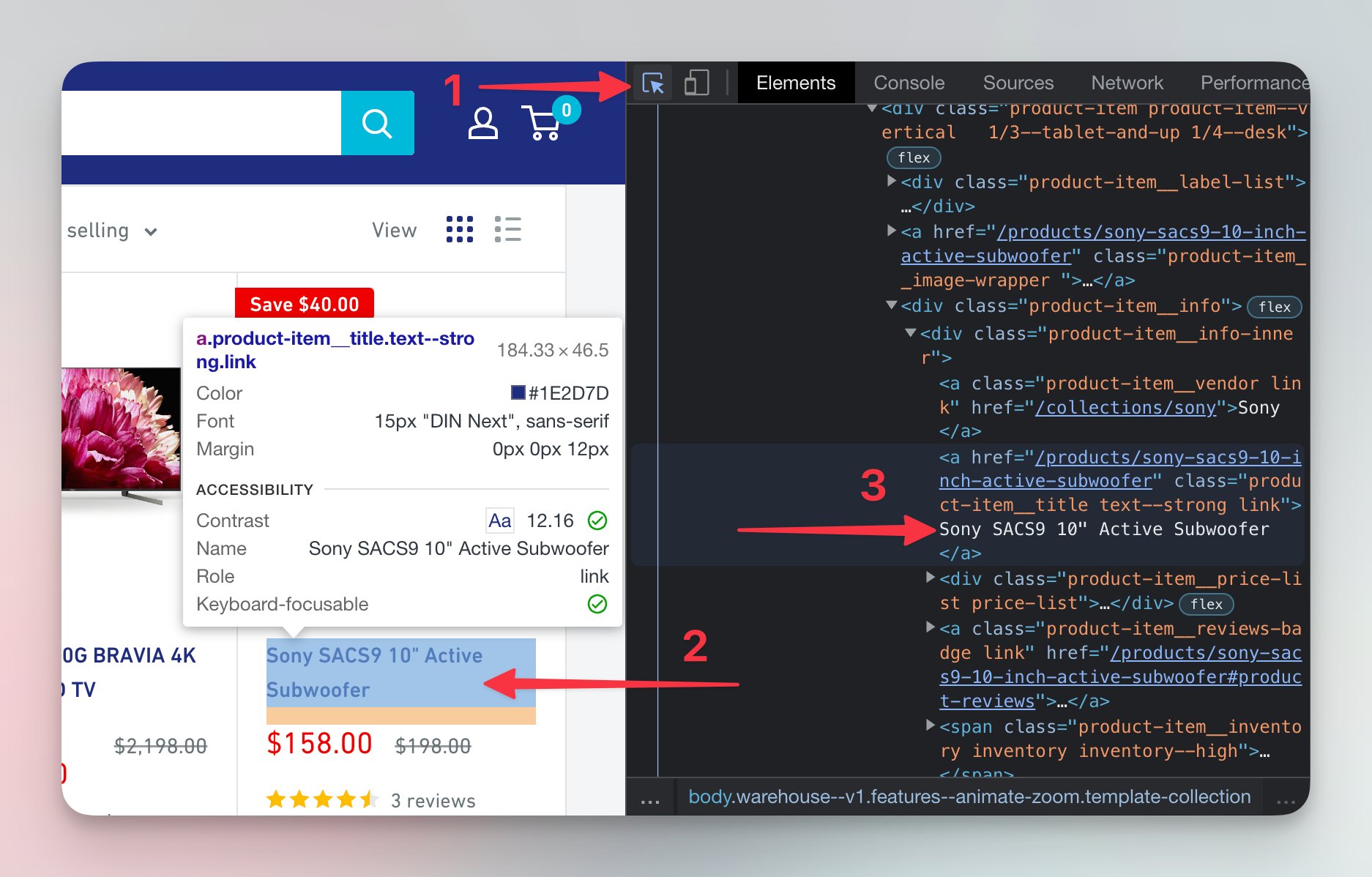
2. Identifying the Link Selector
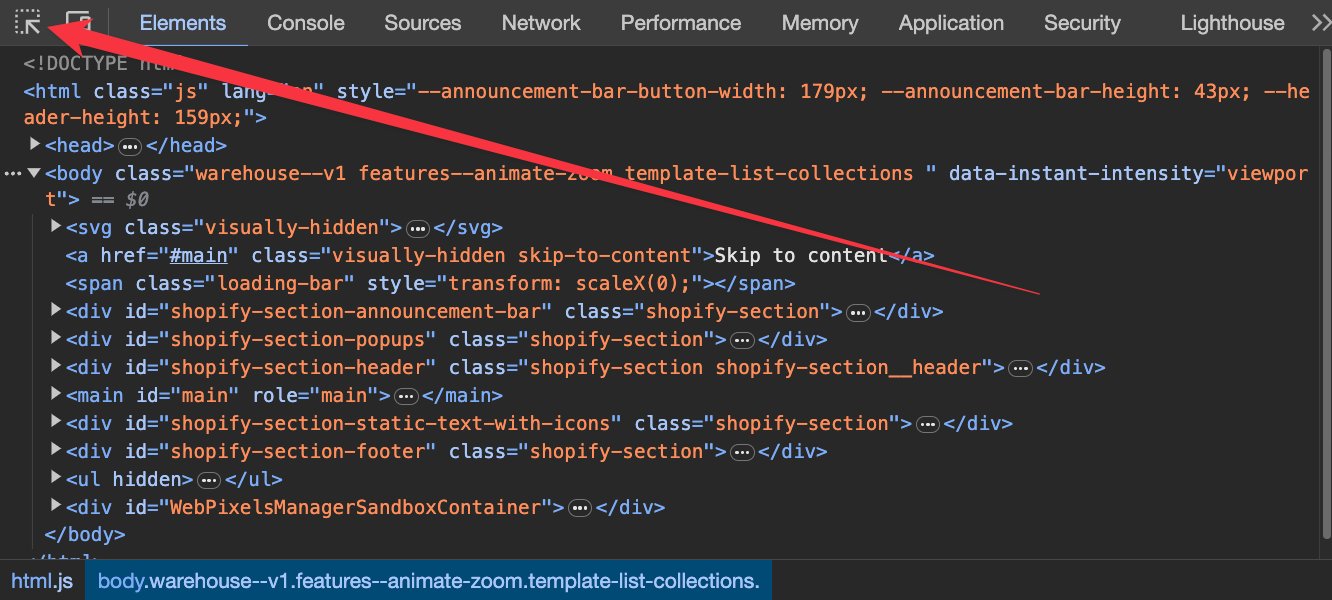

Let's say we want to extract links to articles from the main page of the blog "https://example.com/news".
- Open DevTools and select the Elements tab.
- Hover over the article title and right-click Inspect.
- In the page code, find the nearest
<a>tag containing the link to the article. - Check its classes, ID, or other attributes.
- To copy the ready selector, right-click on the element → Copy → Copy selector.
Example HTML code:
<article class="news-item">
    <a href="/news/article-123" class="news-link">Article Title</a>
</article>
Thus, the CSS selector for the links will be:
.news-item .news-link
In Telematic.pro, specify this selector in the CSS link selector field.
3. Identifying the Content Selector
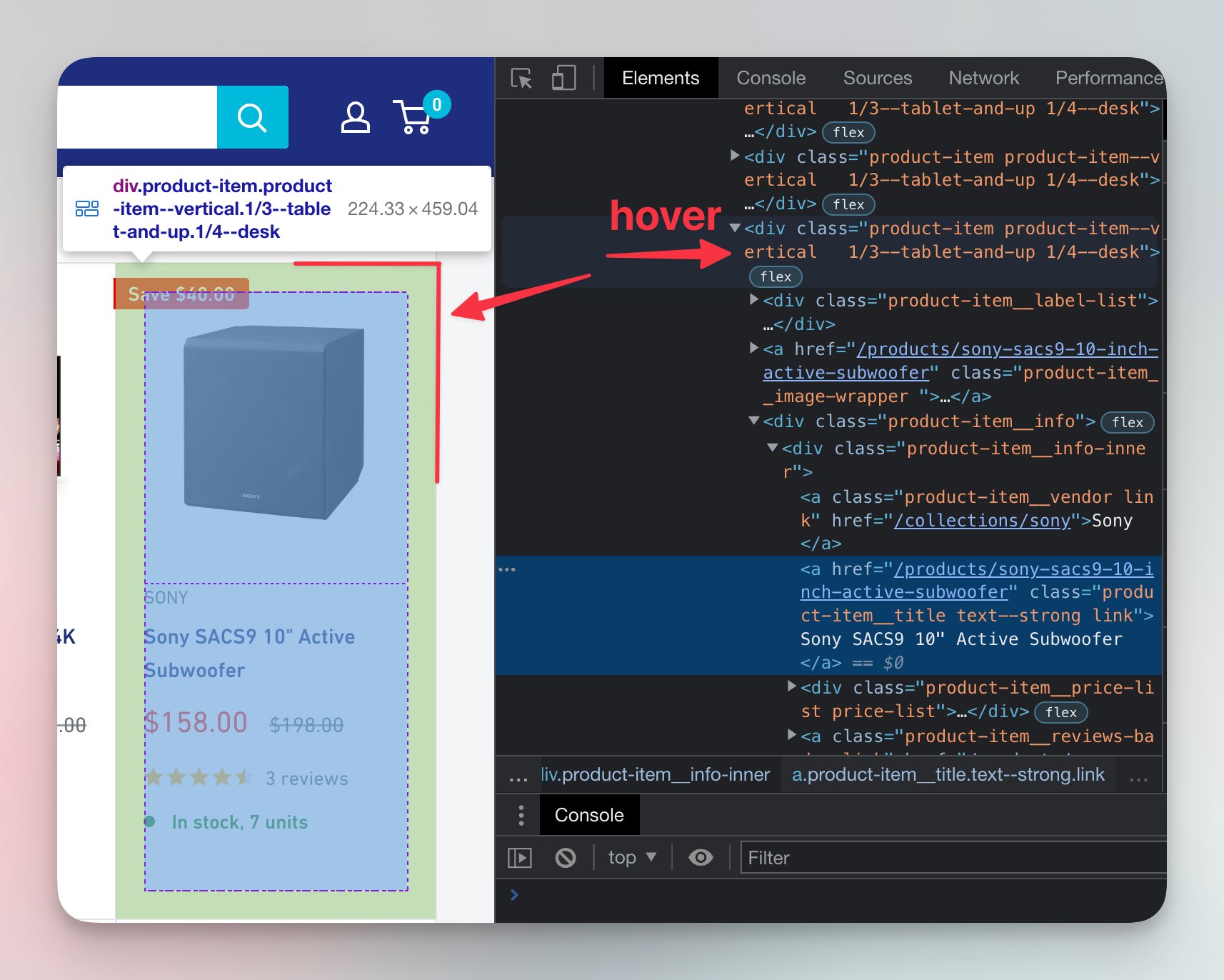
After obtaining the list of links, the system goes into each article and extracts the content. We need to specify where it is located.
- Open DevTools on the article page.
- Find the main container with the text (usually it is a
<div>,<article>,<section>). - Check its classes or ID.
- Highlight the desired container, right-click → Copy → Copy selector to quickly get the CSS selector.
Example HTML code:
<article class="article-content">
    <h1>Article Title</h1>
    <p>Article text...</p>
</article>
CSS selector for the content:
.article-content
Specify it in Telematic.pro in the CSS content selector field.
4. Excluding Unwanted Elements
Sometimes, extra elements get into the article: blocks with ads, social buttons, links to other materials.
- Use DevTools to find the HTML code of the unwanted elements.
- Identify their classes or ID.
- Highlight the element, right-click → Copy → Copy selector to get its CSS selector.
- Test the selector in DevTools: open the console (the Console tab) and enter:
If multiple elements are found, you may need to refine the selector.document.querySelectorAll('selector')
Example HTML code with unwanted elements:
<article class="article-content">
    <h1>Article Title</h1>
    <p>Article text...</p>
    <div class="related-posts">Other articles</div>
    <div class="ad-banner">Ad</div>
</article>
Excluding CSS selectors:
.related-posts, .ad-banner
Add them in Telematic.pro in the Excluding CSS selectors field.
//Complete Configuration Example in Telematic.pro
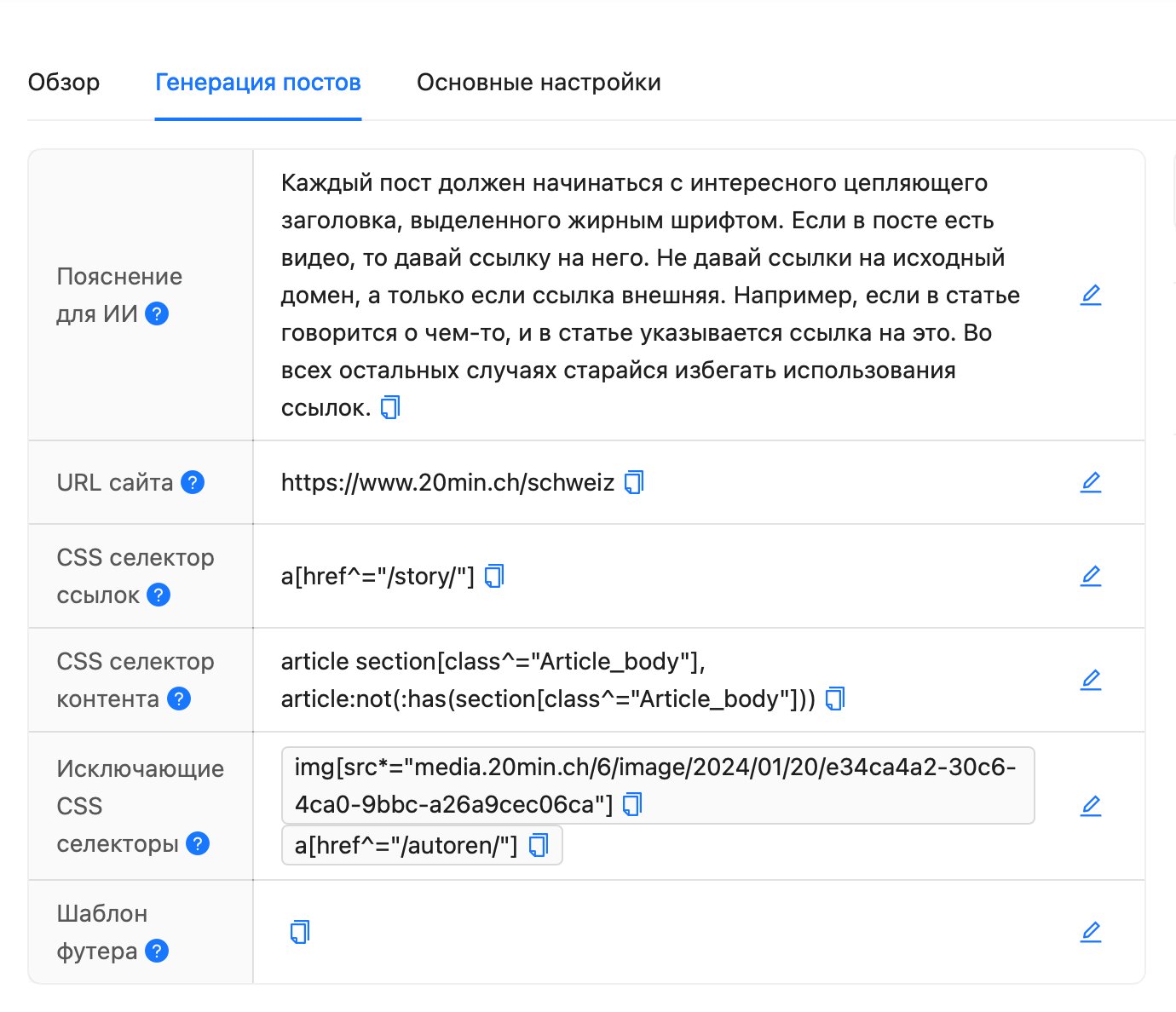
Suppose we are setting up a source for a blog with the URL https://example.com/news. The settings in Telematic.pro will be as follows:
- CSS link selector:
.news-item .news-link - CSS content selector:
.article-content - Excluding CSS selectors:
.related-posts, .ad-banner
//Conclusion
Configuring CSS selectors allows you to accurately extract the necessary data and exclude unwanted elements. Use DevTools to find the right selectors, copy them via the context menu, and test them in the console before adding them to Telematic.pro.